01
Create a dashboard.
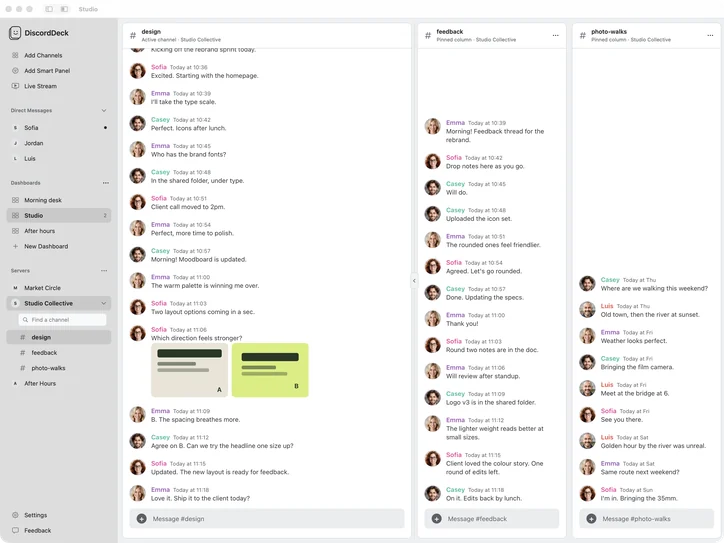
Under Dashboards in the sidebar, click New Dashboard. DiscordDeck switches to it and opens Add Channels, so you can choose its columns straight away.
Dashboards···
Morning desk4
Studio
+New Dashboard
A little room to begin.Choose a channel in the sidebar, or pin a few channels to your deck.
02
Give it a name.
Click the ··· next to Dashboards, or right-click a dashboard, and choose Rename…. Duplicate makes a copy to start from.
Dashboards···
Morning desk
New Dashboard2
03
Switch whenever you like.
Click a dashboard to switch. Its columns come back, and so does the main channel it was showing. The active one shows how many columns it has.
Dashboards
Morning desk
After hours3
Studio
After Hours# gaming
LuisAnyone in tonight?
After Hours# weekend
PriyaHike on Saturday?
Good to know.
- Delete… removes only the saved layout from this Mac. It doesn’t delete any Discord channels or messages.
- You can’t delete your last dashboard; there’s always one to come back to.
- Smart Panels belong to a dashboard, so each one can watch for different words.
- There’s no limit on how many dashboards you keep.
Without DiscordDeck
Discord has no saved layouts. Each time your focus changes, you reopen the servers and channels you need by hand.