01
Find your DMs.
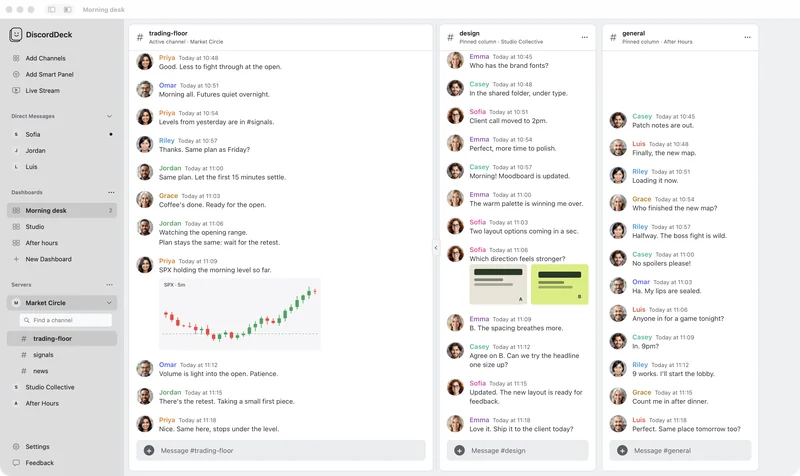
The Direct Messages section lists your most recent conversations, with a dot on anything unread. Message requests and empty conversations are left out. Use the arrow beside it to fold the list away.
Add Channels
Add Smart Panel
Live Stream
Direct Messages⌄
Sofia
Jordan
Trading crew
JordanWatching the opening range.
02
Open one.
Click a name to open the conversation in the main pane; it’s marked as read. Click the Direct Messages label itself to open your full DM inbox.
Direct Messages
Sofia
Jordan
SofiaGot a minute before lunch?
SofiaI want your eyes on the poster.
03
Get a nudge.
When someone mentions you, a notification shows their name and the message. A new DM shows who sent it. DiscordDeck checks about every ten seconds while it’s open.
@JordanDiscordDeckCan you take a look at the levels before the open?
Good to know.
- Notifications come while DiscordDeck is open and signed in.
- No notifications? Check that DiscordDeck is allowed in System Settings › Notifications.
- Want a DM always in view? Tick Include Direct Messages in Add Channels to pin it as a column.
Without DiscordDeck
In Discord’s own app, direct messages live behind the Home button, apart from your servers, so checking them means leaving the channel you’re in.